When Your Computer Says “No” (And How to Win Anyway)
Apr 23, 2026 8:53 pm

Hi ,
Some days, time drags like a dial-up connection—usually when your computer seems to have a mind of its own. (Anyone else hear “Computer says no!” in their head?) This week, I had one of those days: nothing worked, and my to-do list mocked me. But today? Smooth sailing, tasks ticked off, and even a biscuit break. How’s your week shaping up? Any tasks that feel like they’re stuck in the 90s?
From the Field: The Day I Flipped the Script on Training

My first session was with a frazzled woman who didn’t have time for “another lesson.” So I asked her: “Show me the file you spend the most time on.” Cue the lightbulb moment. Instead of teaching what I thought she needed, I showed her three tiny tweaks that saved her hours. By my next visit, people were negotiating for time with me.
The lesson? We don’t know what we don’t know. How could they ask for help with features they didn’t even know existed?
(P.S. The biggest time-saver for that office? Templates. More on those below!)
Templates: Your Secret Weapon (Even in Outlook!)

🎥 Watch how to use Outlook templates like a pro
(Fun fact: I’m wrapping up my new book, “The Mini Manual: Office Hacks for Busy Pros”, and Outlook templates are mentioned!)
New on YouTube: Never Miss an Important Email Again
🎥 Watch here: https://youtu.be/kvgBUte3ru8
In Case You Missed It: The Excel Shortcut That Feels Like Magic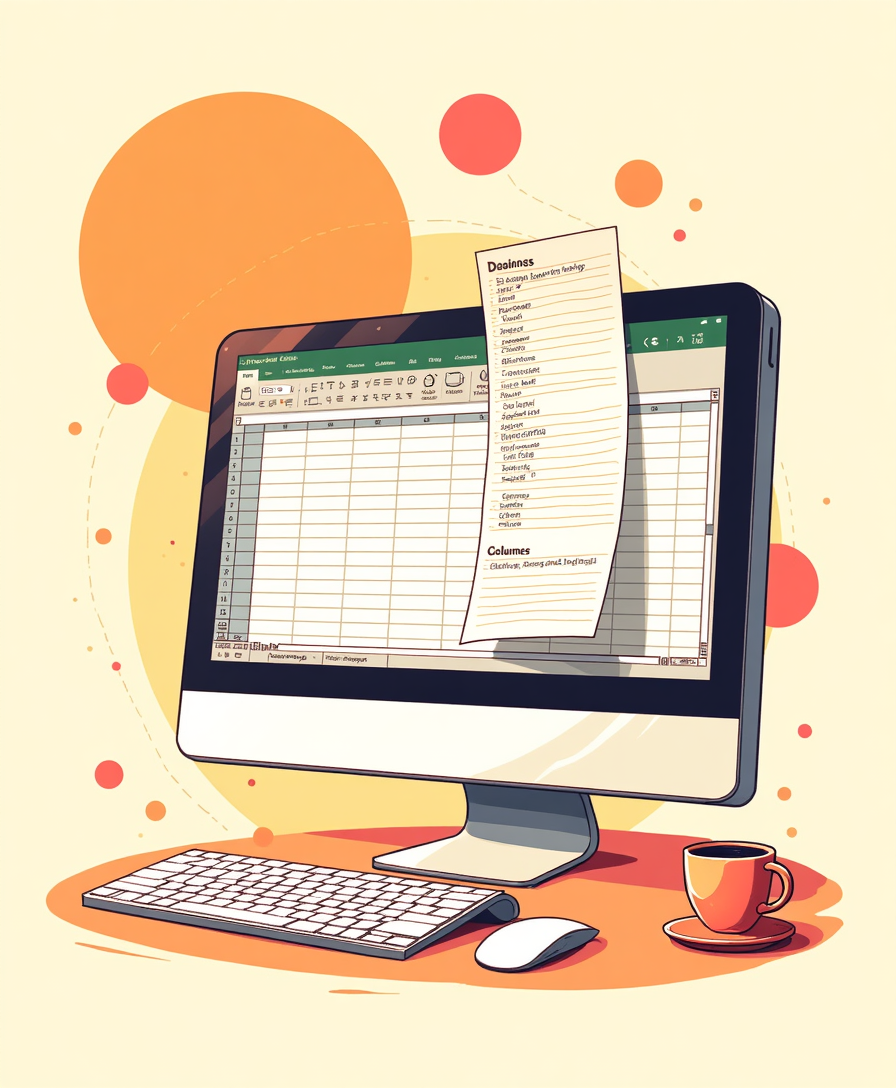
If you’ve ever rearranged columns in Excel by copying, pasting, and praying, this drag-and-drop trick will feel like a superpower. No more inserting, deleting, or data disasters—just click, drag, and voilà.
🎥 Watch again: https://youtu.be/YNgVA6GBLl4
Want to Publish a Book in Just 5 Days?

Sound impossible? It’s not.
My new “Publish in 5 Days” course is designed for busy pros like you—no tech headaches, no endless delays. You’ll go from “I want to publish a book” to “I’m published” in just five focused sessions.
📅 Next course starts: Monday, 27 April at 4pm BST
Investment: £240 (incl. VAT)
Can’t make a session? No problem—all sessions are recorded and available to those registered.
Spaces are limited—reserve yours now:
https://businessittraining.com/publish-in-5-days/
(P.S. This isn’t just theory—I’ll walk you through every step, live. Bring your idea, and let’s make it real!)
Coming Soon: “The Mini Manual: Office Hacks for Busy Pros”
The book I’ve been teasing is almost here! It’s packed with time-saving tips (like the ones above) and accompanying videos to show you exactly how to use them. Stay tuned—I’ll share the release date soon!
Quick Pro Tip: Tame Your Inbox (Without Losing Your Mind)
Overwhelmed by emails? Try one rule at a time:
- Auto-sort: Set up a rule to move newsletters to a “Read Later” folder.
- Highlight VIPs: Use conditional formatting to flag emails from your boss or key clients.
- Filter first: Triage unread emails only—clear the filter once you’re done.
Pro tip: Start with one rule for a week. Adjust it, master it, then add another. Small steps beat overwhelm every time!
Your Turn: What’s Your “Computer Says No” Moment?
Hit reply and tell me: What’s the most frustrating tech hiccup you’ve faced this week? I’ll share the best stories (anonymously!) in the next newsletter—along with solutions, if I’ve got ‘em!
Thanks for reading!
Here’s to fewer tech tantrums and more “I’ve got this” moments.
Katherine
Business IT Training


