How To Play Geometry Dash On Web Browser
Want to play Geometry Dash right now without downloading an app or installing a game? You can play a browser-based version directly on GeoDash.org using a modern web browser.
No app store or lengthy setup is needed. In this guide, you'll learn how to start playing, choose a version, set up your controls, play on a Chromebook, and fix common browser problems.
Can You Play Geometry Dash in a Browser?

Yes, you can play browser-based versions of Geometry Dash without installing the desktop or mobile game. A modern browser can run web games using technologies such as HTML5, WebGL, and WebAssembly, so you don't need the old Flash Player plugin. Adobe officially ended Flash support on December 31, 2020, and modern browsers have moved away from plugin-based games.
What Changed?
Older browser games often depended on Adobe Flash, which was once widely used for animations and online games. Flash is no longer supported, so modern web games use browser technologies such as HTML5 and WebGL instead. These technologies work directly with modern browsers without requiring a separate plugin.
For GD fans, this means you can open a browser-based Geo Dash version, wait for the game to load, and start playing without installing Flash or another game plugin.
What Do You Need?
You only need a modern web browser, a compatible device, and an internet connection to get started. Chrome, Edge, Firefox, and Safari are common choices for browser gaming.
If the game feels slow, update your browser and close unnecessary tabs or background apps. A stable browser and device can make a noticeable difference when playing timing-based games like Geometry Dash.
How To Play Geometry Dash on GeoDash.org
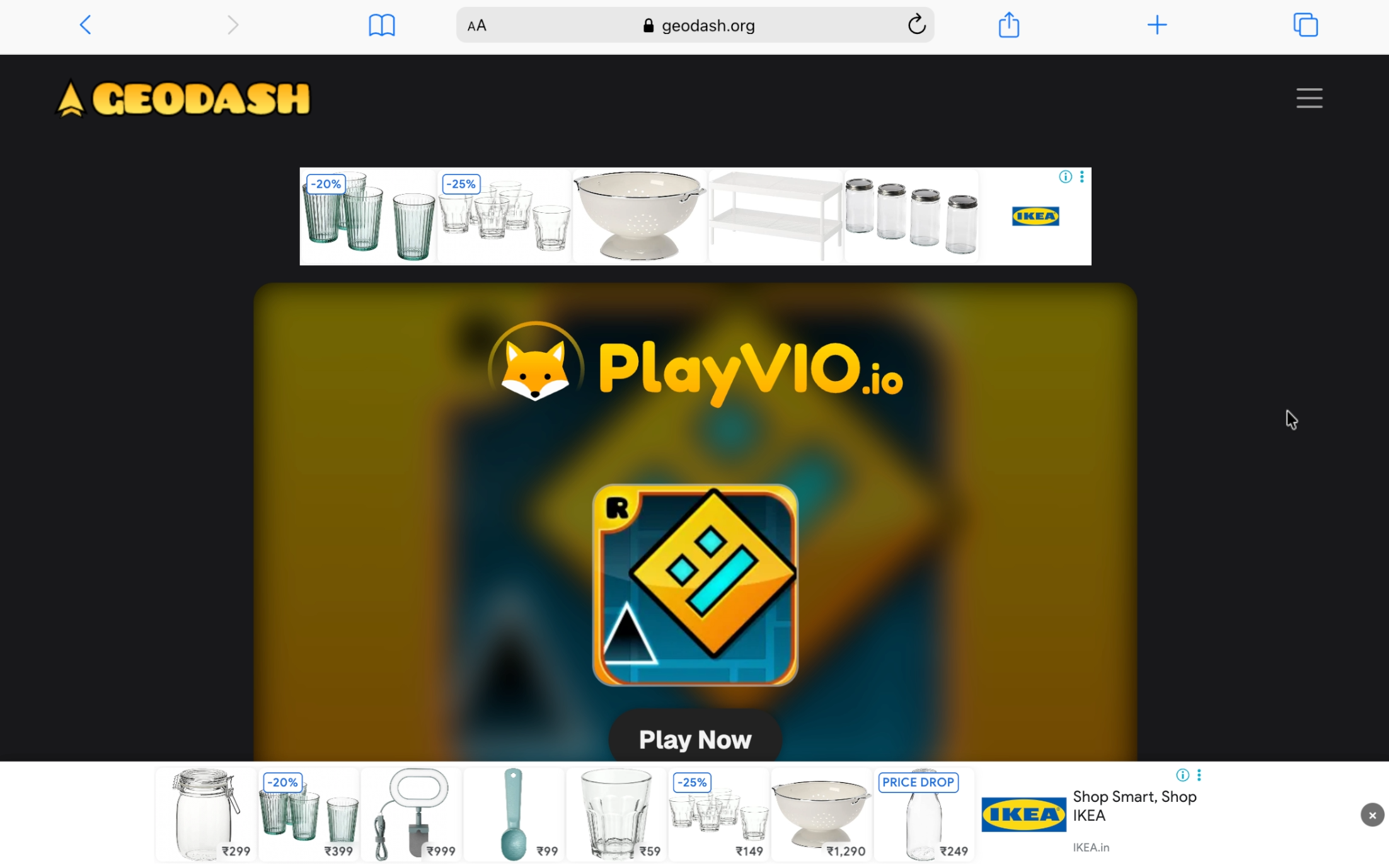
Playing a browser-based version is simple and does not require a separate game installation. GeoDash.org currently provides browser-playable Geometry Dash versions and spin-offs, including Geometry Dash Lite, Meltdown, World, and SubZero.
Open a modern browser such as Chrome, Edge, Firefox, or Safari.
Visit GeoDash.org and choose the Geometry Dash version you want to play.
Wait for the game to load inside the browser window.
Click the game area so it receives your keyboard or mouse input.
Press Space, Up Arrow, W, or click to control your character, depending on the game mode.
Use fullscreen if you want a larger game area and fewer distractions.
You can start with Geometry Dash Lite if you're new to the series, or try SubZero, Meltdown, or World for different level designs and challenges.
Which Geometry Dash Versions Work in a Browser?
GeoDash.org offers several Geometry Dash versions and spin-offs that can be played directly in a web browser. Geometry Dash Lite is a good choice for beginners, while SubZero is suited to short, challenging sessions. Meltdown offers fast-paced, themed levels, and World provides more variety. Players looking for the complete experience can choose Geometry Dash Full, with access to broader gameplay and community content.
Start With Lite or SubZero
Geometry Dash Lite is a good starting point if you are new to the game. It provides the core jumping, timing, portals, and rhythm-based gameplay without requiring the full paid version.
SubZero is better if you want a short challenge with a different set of levels. You can also try Meltdown or World when you want more variety. GeoDash.org lists these and other Geometry Dash-related games in its browser game collection.
What's Different in Browser Versions?
Browser versions are designed for quick access, so they may not include every feature available in the full paid game. The official full version includes features such as the level editor and user-generated levels, which are important if you want to create your own levels or explore the wider community.
For simply playing levels and practicing your timing, a browser version can be a convenient way to get started without installing the full game.
Browser Controls and Setup
Geometry Dash uses simple one-button controls, but choosing the right input method can make browser play more comfortable. On GeoDash.org, you can use a keyboard, mouse, or touchscreen depending on your device.
Keyboard Controls
On a PC, press Spacebar, Up Arrow, or W to jump in supported browser versions. Hold the key when a game mode requires continuous movement, such as flying with the Ship or controlling the Wave.
Mouse Controls
You can also use the left mouse button for jumping and flying. Many players prefer a mouse because clicking can feel precise during quick sections.
Touch Controls
On phones and tablets, simply tap the screen to jump. Hold your finger down when the current game mode requires upward movement. Landscape orientation can give you more room to see upcoming obstacles.
One Setup Tip Most Players Miss
Click inside the game window before you start. This helps the game receive your keyboard input instead of the browser page. If your first jump does not respond, click the game area once and try again.
Playing on a School Chromebook or PC
A Chromebook can be a convenient way to play browser-based Geometry Dash because the game runs through the web instead of requiring a traditional desktop installation. ChromeOS supports web-based games and other web apps, although features and available apps can vary by device and administrator settings.
Why Browser Games Work on Chromebooks
You can open Chrome, visit Geo Dash, and load the browser version directly. This is useful on Chromebooks that cannot run the full desktop version of Geometry Dash. You don't need to install Steam or another desktop game client just to play a browser-based version.
Can You Play on a School Chromebook?
That depends on the school's network and device policies. Managed school Chromebooks can have restrictions on websites, apps, and other content, so a game site may be blocked even though it works normally on a personal Chromebook. Google also notes that schools can restrict apps and features on managed devices.
What If Your School Blocks It?
Don't try to bypass your school's content filters or device restrictions. If GeoDash.org is blocked, save the game for home or another time when gaming is allowed. This keeps you within your school's rules and avoids problems with a managed device.
Best Time to Play
If your school permits gaming, use approved free periods such as lunch or study hall. Otherwise, play on your own device outside school. The important thing is to treat browser access as a convenience, not a way to bypass network restrictions.
Fixing Lag and Common Problems
Browser-based Geometry Dash can sometimes lag, freeze, or fail to load. Try these quick fixes before switching devices.
Game Runs Slowly or Stutters - Close extra tabs, apps, and browser extensions to free up system resources. If the problem continues, check your browser's hardware acceleration settings.
Game Won't Load - Refresh the page and make sure JavaScript is enabled. You can also try disabling extensions, clearing the cache, or opening the game in another browser.
No Sound - Check that your browser tab and device are not muted. Reload the game after checking your audio settings.
Controls Feel Delayed - Close background apps and unnecessary tabs. A stable frame rate helps keep inputs responsive during tight jumps.
Progress Disappeared - Browser progress may be stored locally. Clearing browser data, using private browsing, or changing browsers can remove locally saved progress, so avoid clearing site data unnecessarily.
GD Browser vs. Downloaded Version - Which Should You Pick?
Browser play is best for quick sessions, beginners, and devices like Chromebooks because there is nothing to install. The full downloaded version is better if you want the level editor, user-created levels, and the complete Geometry Dash experience. Start in your browser, then consider the full version when you want more features.
FAQ
Is Geometry Dash free to play online?
Yes, browser-based Geometry Dash versions are free to play online on GeoDash.org, allowing you to enjoy levels without downloading or installing the desktop game.
Do I need to download anything?
No, you do not need to download anything to play the browser-based versions of Geometry Dash on GeoDash.org; the game loads directly inside your web browser.
Can I play Geometry Dash on a Chromebook?
Yes, you can play browser-based Geometry Dash on a Chromebook because the game runs through the web browser without requiring a desktop installation or Steam.
Does it work on iPhone and Android browsers?
Yes, browser-based Geometry Dash can be played on supported iPhone and Android browsers, with touchscreen controls allowing you to tap and hold during gameplay.
Will my progress be saved?
Browser progress may be stored locally on your device, so clearing browser data, using private browsing, or switching browsers can remove previously saved progress.
Which browser works best for Geometry Dash?
Chrome, Edge, Firefox, and Safari can run browser-based Geometry Dash, while keeping your browser updated can help provide better performance and compatibility.
Final Words
Playing Geometry Dash in a browser is a quick way to start without downloads or installations. Open GeoDash.org, choose a version, and start playing.
If you want better performance, use a modern browser and follow the troubleshooting tips above. For players ready to improve, explore our Geometry Dash beginner tips guide next.